Claude Code Features
Foundation: Understanding Claude Code's Architecture
The Agentic Loop
Claude Code operates through three interconnected phases that blend together dynamically:
- Gather context - Search files, read code, understand your project
- Take action - Edit files, run commands, make changes
- Verify results - Run tests, check output, validate changes
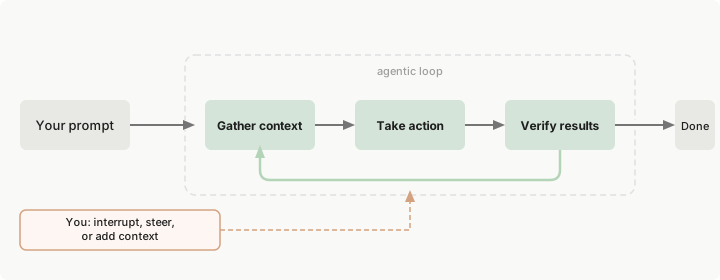
How Claude Code works: The agentic loop
The loop adapts to your task. A codebase question might only need context gathering. A bug fix cycles through all three phases repeatedly. You can interrupt at any point to steer Claude in a different direction.
Key insight: Claude Code is the agentic harness around Claude—it provides the tools, context management, and execution environment that turn a language model into a capable coding agent.
Models: The Reasoning Engine
Claude Code uses Claude models to understand your code and reason about tasks. Different models offer different tradeoffs:
- Sonnet (default) - Handles most coding tasks well. Balanced speed and capability.
- Opus - Stronger reasoning for complex architectural decisions and multi-step planning.
- Haiku - Fast and lightweight for simple, straightforward tasks.
When this guide says "Claude chooses" or "Claude decides," it's the model doing the reasoning.
Switch models during a session with /model <name> or start with claude --model <name>.
Built-in Tools: The Four Categories
Before extending Claude Code, understand what it can already do:
| Category | Capabilities |
|---|---|
| File operations | Read files, edit code, create new files, rename and reorganize |
| Search | Find files by pattern, search content with regex, explore codebases |
| Execution | Run shell commands, start servers, run tests, use git |
| Web | Search the web, fetch documentation, look up error messages |
Claude chooses which tools to use based on your prompt and what it learns along the way. Each tool use gives Claude new information that informs the next step—this is the agentic loop in action.
What Claude Can Access
When you run claude in a directory, Claude Code gains access to:
- Your project - Files in your directory and subdirectories, plus files elsewhere with your permission
- Your terminal - Any command you could run: build tools, git, package managers, system utilities, scripts
- Your git state - Current branch, uncommitted changes, and recent commit history
- Your CLAUDE.md - Project-specific instructions, conventions, and context for every session
- Extensions you configure - MCP servers, skills, subagents, and Claude in Chrome
Sessions and Context Management
Sessions are ephemeral. Each new session starts fresh—Claude doesn't "learn" preferences over time or remember what you worked on last week. If you want Claude to know something across sessions, put it in your CLAUDE.md.
The context window holds your conversation history, file contents, command outputs, CLAUDE.md, loaded skills, and system instructions. As you work, context fills up. Claude compacts automatically, but instructions from early in the conversation can get lost.
Key commands:
/context- See what's using space/mcp- Check per-server context costs/compact- Manually compact with a focusclaude --continue- Resume a sessionclaude --continue --fork-session- Branch off and try a different approach
Sessions and Git Branches
Each Claude Code conversation is a session tied to your current directory. When you resume, you only see sessions from that directory.
Important: Claude sees your current branch's files. When you switch branches, Claude sees the new branch's files, but your conversation history stays the same. Claude remembers what you discussed even after switching.
For parallel work: Since sessions are tied to directories, you can run parallel Claude sessions by using git worktrees, which create separate directories for individual branches.
Same session in multiple terminals: If you resume the same session in multiple terminals, both terminals write to the same session file. Messages from both get interleaved. Nothing corrupts, but the conversation becomes jumbled. For parallel work from the same starting point, use --fork-session to give each terminal its own clean session.
The mental model: Claude Code as a "programmable teammate"
Claude Code isn't just "chat + terminal"—it's a runtime with extensibility primitives:
- Reusable intent (Slash Commands, Skills)
- Delegation + context isolation (Subagents)
- Deterministic guardrails + automation (Hooks)
- External tool access (MCP)
- Packaging + distribution (Plugins)
- Headless + CI control (Agent SDK /
claude -p)
If you treat these as composable primitives on top of the core agentic capabilities, you get predictable, team-scalable workflows instead of "prompt magic".
Safety Mechanisms
Checkpoints: Undo File Changes
Every file edit is reversible. Before Claude edits any file, it snapshots the current contents. If something goes wrong:
- Press
Esctwice to rewind to a previous state - Ask Claude to undo
Checkpoints are local to your session, separate from git. They only cover file changes. Actions that affect remote systems (databases, APIs, deployments) can't be checkpointed, which is why Claude asks before running commands with external side effects.
Permission Modes
Press Shift+Tab to cycle through permission modes:
- Default: Claude asks before file edits and shell commands
- Auto-accept edits: Claude edits files without asking, still asks for commands
- Plan mode: Claude uses read-only tools only, creating a plan you can approve before execution
You can also allow specific commands in .claude/settings.json so Claude doesn't ask each time. This is useful for trusted commands like npm test or git status. Settings can be scoped from organization-wide policies down to personal preferences.
Working Effectively with Claude Code
Best Practices from the Field
Be specific upfront - The more precise your initial prompt, the fewer corrections you'll need. Reference specific files, mention constraints, and point to example patterns.
> The checkout flow is broken for users with expired cards.
> Check src/payments/ for the issue, especially token refresh.
> Write a failing test first, then fix it.
Give Claude something to verify against - Include test cases, paste screenshots of expected UI, or define the output you want. Claude performs better when it can check its own work.
Explore before implementing - For complex problems, separate research from coding. Use plan mode (Shift+Tab twice) to analyze the codebase first, then let Claude implement.
Delegate, don't dictate - Think of delegating to a capable colleague. Give context and direction, then trust Claude to figure out the details. You don't need to specify which files to read or what commands to run.
Interrupt and steer - You can interrupt Claude at any point. If it's going down the wrong path, just type your correction and press Enter. Claude will adjust its approach based on your input.
Quick decision matrix: "Which feature should I use?"
| Need | Use | Why |
|---|---|---|
| Repeatable prompt template you invoke manually | Slash command | Fast, explicit, single-file prompt reuse. |
| Standardize how Claude does something (auto-triggered) | Skill | Model-invoked, supports progressive disclosure + scripts. |
| Keep main thread clean; delegate specialized work | Subagent | Separate context window + per-agent tool/model control. |
| Make actions deterministic (always lint, always log, block risky ops) | Hook | Runs shell commands on lifecycle events; enforce policy. |
| Connect Jira/GitHub/DB/Sentry/Slack/etc | MCP | Standard way to add external tools + prompts. |
| Share all of the above across team/org | Plugin | Versioned distribution, namespacing, marketplaces. |
| Run Claude Code in scripts/CI, get JSON, enforce tools | Agent SDK CLI (claude -p) |
Headless execution + structured outputs + tool allowlists. |
1) Slash commands: your “prompt macros” (interactive power tool)
What they’re for
- Fast, explicit invocation of a known workflow:
/review,/optimize,/deploy staging, etc. - Lightweight team conventions (project commands) and personal snippets (user commands).
Where they live
- Project:
.claude/commands/ - Personal:
~/.claude/commands/
Senior best practices
- Use frontmatter to control tools, args, execution mode, and even scoped hooks.
- Pull context automatically with
!bash snippets (git status/diff/log) to reduce back-and-forth. - Reference files with
@to force grounding in real code, not guesswork. - Fork when you need isolation (
context: fork), especially for “big reviews” or “explore then summarize”.
Anti-pattern
- Don’t cram complex multi-step org standards into one command—graduate to a Skill when you need structure + multiple files.
2) Skills: auto-invoked “capabilities” (standards, playbooks, utilities)
What they’re for
Skills are model-invoked: Claude loads only name/description at startup and activates the Skill when your request semantically matches the description. This is ideal for team standards (PR review rubric, migration rules, database querying conventions).
Skill architecture patterns (this is where senior teams win)
Progressive disclosure:
- Keep
SKILL.mdas “overview + routing” - Put long references in sibling files (loaded only when needed)
Zero-context execution:
- Bundle scripts inside the Skill folder; Claude can run them and only the output consumes context tokens (great for validation, formatting, policy checks).
When Skills beat prompts
- Any workflow with checklists, invariants, schemas, or repeatable quality gates
- Any workflow where you want Claude to "just do it the right way" without remembering to type a command
Context management with Skills
Skills load on demand. Claude sees skill descriptions at session start (lightweight), but the full content only loads when a skill is actually used. This keeps context lean.
Pro tip: For skills you invoke manually (like /review), set disable-model-invocation: true in the skill frontmatter to keep descriptions out of context until you need them. This is especially valuable when you have many skills defined.
3) Subagents: delegation + context isolation (keep the main thread strategic)
What they're for
Subagents are pre-configured specialists that run in their own context window, with:
- their own system prompt
- optional restricted tools
- optional model selection
- optional preloaded Skills (note: subagents don't inherit Skills automatically)
When to use subagents (senior heuristics)
- Exploration-heavy tasks (scan codebase, map architecture, find all callsites)
- Independent tracks (one agent reviews, another runs tests, another drafts docs)
- Permission boundary (give a "test-runner" agent Bash+Edit, keep "explore" read-only)
- Context isolation - Subagents get their own fresh context, completely separate from your main conversation. Their work doesn't bloat your context. When done, they return a summary.
Claude Code also includes built-in styles like Explore (read-only, fast) and Plan for plan mode research.
Context management benefit
Subagents don't consume your main context. They get their own fresh context window, do their work, and return only a summary. This is crucial for long sessions where context management becomes critical. For example, an exploration subagent can scan hundreds of files without filling up your main conversation window.
Pro tip
Write subagent description fields like routing rules ("Use proactively after any code edits to run targeted tests"). Claude delegates better when your description is action-oriented.
4) Hooks: deterministic automation + guardrails (turn “suggestions” into policy)
Hooks are user-defined shell commands that run at lifecycle events (PreToolUse, PostToolUse, PermissionRequest, SessionStart, Stop, etc.). Use them to enforce correctness and reduce operational friction.
Core hook moves (high leverage)
- PreToolUse: validate/block risky edits or commands before they run (e.g., protect
.env, prevent force pushes). - PermissionRequest: auto-approve safe repeated actions (e.g.,
npm test*) and deny dangerous patterns. - PostToolUse: auto-format/lint/test after edits/writes.
- SessionStart: inject dynamic context (git status, TODO list) so you stop pasting boilerplate.
- Stop / SubagentStop: quality gate—force “continue until checklist passes”.
Security reality check
Hooks run with your environment credentials and can exfiltrate data if malicious—treat hook code like production code: review, pin paths, sanitize stdin, and avoid sensitive files.
5) MCP: connect Claude Code to real systems (Jira/GitHub/DB/Sentry/Slack…)
MCP (Model Context Protocol) is an open standard to connect Claude Code to external tools/data sources via MCP servers.
What this unlocks
- “Implement feature from Jira and open PR”
- “Check Sentry + Statsig for usage”
- “Query Postgres for user samples”
- “Pull Figma designs / Slack messages” …all as first-class tool calls, not copy/paste glue.
Installation options (practical)
- HTTP remote server (recommended)
- SSE remote server (deprecated where HTTP exists)
- Stdio local server (best for local scripts / system access)
Scopes (important for teams)
- local (default): only you in this project
- project: shared via
.mcp.json(checked in) - user: across all your projects
MCP + Slash commands
MCP servers can expose prompts that appear as slash commands like:
/mcp__<server>__<prompt> ...
6) Plugins: package and share commands/agents/skills/hooks/MCP
Plugins are the distribution unit: versioned, namespaced, shareable across projects/teams/marketplaces.
When to stay “standalone” vs go plugin
- Standalone (
.claude/): quick experiments, project-only customization, short names like/review - Plugin (
.claude-plugin/plugin.json): shared org workflow, reusable across repos, marketplace distribution (namespaced/plugin:cmd)
Plugin structure you should internalize
commands/,agents/,skills/,hooks/,.mcp.json,.lsp.jsonlive at plugin root (manifest only in.claude-plugin/). Plugins can also bundle MCP servers and LSP servers for code intelligence.
7) Run Claude Code programmatically: CI/CD, scripts, structured JSON
Use the Agent SDK via CLI (claude -p) for headless runs:
--allowedToolsto auto-approve selected tools--output-format json(+ optional--json-schema) for structured outputs--continue/--resumeto chain steps across calls--append-system-promptto layer constraints without replacing defaults
Two practical realities:
- Slash commands are interactive-only; in
-pmode, describe the task instead. - For pipelines, prefer schema’d JSON outputs so downstream steps are deterministic.
Composition recipes (what strong teams actually do)
Recipe A: “Review → Fix → Validate → Summarize” (local dev loop)
-
Slash command
/reviewto standardize the review ask -
Subagent
code-reviewerfor isolated deep review -
Hooks
- PostToolUse: format/lint after edits
- Stop: refuse to stop until tests pass
-
Output: main thread stays clean; review is consistent; fixes are formatted automatically.
Recipe B: “Guardrails-first engineering”
- PreToolUse hook blocks edits to sensitive paths + dangerous bash patterns
- PermissionRequest hook auto-approves safe repetitive commands
- Skill encodes your org’s engineering standards + checklists Result: Claude can move fast without silently doing unsafe things.
Recipe C: “Issue-to-PR automation” (real tooling)
- Add MCP servers for GitHub + Jira/Linear + Sentry (or equivalents)
- Create a Skill: “How we implement tickets” (branch naming, commit style, tests, PR template)
- Package it as a Plugin for team reuse Result: consistent delivery mechanics across repos.
Recipe D: CI pipeline “Claude as a check”
claude -p "...review diff..." --output-format json --json-schema ...- Gate merges on: severity, touched areas, missing tests, risky patterns Result: deterministic, machine-consumable review artifacts.
Context Management Strategies
Understanding context costs is critical for effective Claude Code usage, especially in team environments.
What Fills the Context Window
The context window holds:
- Your conversation history
- File contents Claude has read
- Command outputs
- Your CLAUDE.md
- Loaded skill content (descriptions always, full content when invoked)
- MCP server tool definitions (added to EVERY request)
- System instructions
When Context Fills Up
Claude Code manages context automatically as you approach the limit:
- Clears older tool outputs first
- Summarizes the conversation if needed
- Preserves your requests and key code snippets
- May lose detailed instructions from early in the conversation
Critical rule: Put persistent rules in CLAUDE.md rather than relying on conversation history.
Control What's Preserved
Add a "Compact Instructions" section to CLAUDE.md to guide what should be preserved during compaction:
## Compact Instructions

When compacting context, prioritize:
- API design decisions and architectural patterns
- Database schema constraints
- Security requirements and auth flow details
Or run /compact with a focus: /compact focus on the API changes
Feature-Specific Context Costs
MCP servers: Add tool definitions to every request. A few servers can consume significant context before you start working. Run /mcp to check per-server costs.
Skills: Descriptions load at session start (lightweight), full content loads on demand. Use disable-model-invocation: true for manually-invoked skills to keep descriptions out of context.
Subagents: Zero cost to your main context—they get their own separate context window and only return a summary.
Sessions: When you resume with --continue or fork with --fork-session, full conversation history is restored. This can fill context quickly in long sessions.
Practical Context Management
- Use
/contextfrequently to see what's consuming space - Offload exploration to subagents - Let them scan hundreds of files without bloating your main conversation
- Minimize MCP servers - Only connect services you actively need
- Use CLAUDE.md for persistence - Don't rely on conversation history for rules
- Fork strategically - Start fresh sessions for new features rather than continuing indefinitely
- Set disable-model-invocation: true - For skills you invoke manually
The "CTO-level" checklist for rolling this out
- Define your invariants (formatters, lint rules, test expectations, sensitive paths)
- Encode them in Hooks (deterministic enforcement)
- Encode team playbooks in Skills (auto-applied standards)
- Use Subagents to isolate workflows (review/test/docs)
- Add MCP only for systems you trust; scope configs appropriately
- Package as a Plugin for versioned distribution
- Add
claude -psteps in CI for structured, auditable outputs